How to Build a Budget in Google Sheets (Step by Step)
Short answer: To budget in Google Sheets, export your recent transactions from your bank as a CSV, paste them into a sheet, tag each one with a category, then use a summary tab with SUMIF to total spending per category against a monthly target. It’s free, private, and takes about 30 minutes to set up.
Google Sheets is one of the better places to budget, mostly because it stays out of your way. It’s free, and your money data never leaves an account you already own. Here’s how to put one together that actually holds up over time.
Why budget in Google Sheets?
- Nothing to pay for. No subscription, and no free trial that runs out on you.
- It stays private. Your transactions sit in your own Google account, with no bank login and no third-party server holding your history.
- You set the rules. The categories, the layout, the math, all of it is yours to change.
- You can take it with you. Export it, back it up, or walk away whenever you want. It’s a file you own.
The catch is that you have to build it and keep it fed. A spreadsheet won’t set itself up, and it won’t pull in your transactions unless you do that part yourself, or hand it off to an add-on that does. If you want the privacy of a sheet without all the manual work, that’s the gap something like Tolerable Finance fills, but there’s nothing stopping you from doing it by hand. Here’s how.
How to build a budget in Google Sheets, step by step
- Export your transactions from your bank as a CSV. Almost every bank lets you download the last month or two of activity as a CSV file from its website.
- Create a “Transactions” tab. Paste the CSV in, or use File → Import. You want at least three columns: Date, Description, and Amount.
- Add a Category column. Next to each transaction, tag it: Groceries, Rent, Dining, Gas, Subscriptions, and so on. Keep the list short at first. You can split categories later once you see where the money actually goes.
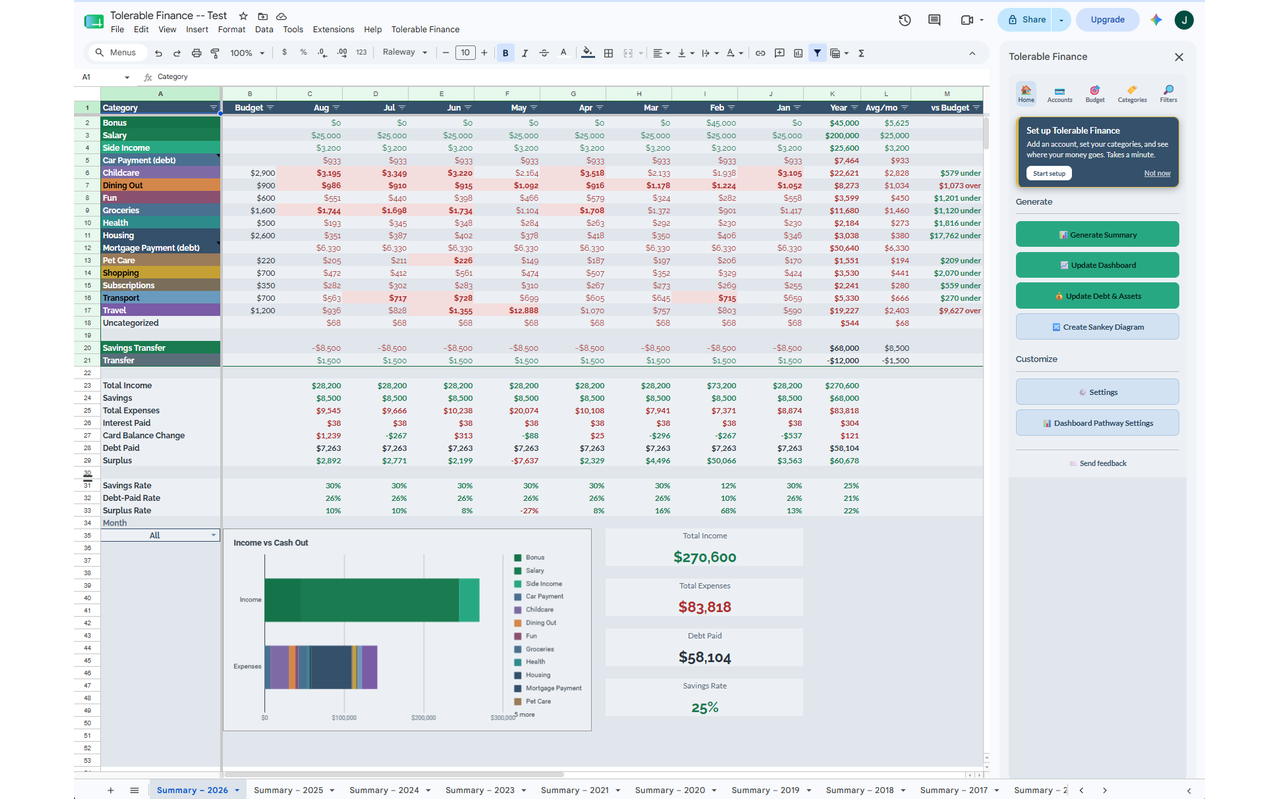
- Create a “Summary” tab. List your categories down one column. Next to each, use
=SUMIF(Transactions!C:C, "Groceries", Transactions!D:D)to total everything tagged that way. (Adjust the column letters to match your sheet.) - Add a target next to each category. What you plan to spend. Put the actual total beside it, and a simple
target - actualcolumn so you can see where you’re over or under at a glance. - Repeat each month. Paste in the new CSV, tag the new rows, and your summary updates itself.
That’s really the core of it. Everything after this, the charts, net worth, debt payoff and the rest, is just extra you can add once the basics are running.
The habit that keeps it working
None of this works because of the spreadsheet itself. It works if you actually tag your transactions on a regular basis instead of letting three months pile up. The folks I know who spend ten minutes on it every week always have a rough sense of where they stand, and the ones who ignore it until it becomes a giant backlog tend to just give up. Keeping up with a little at a time is a lot less painful than digging out of a whole season at once.
Skip the setup (optional)
If you like the privacy and ownership of a Google Sheet but you’d rather not build and babysit the formulas, Tolerable Finance is an add-on that runs inside your own sheet. You still import a CSV yourself, so there’s no bank login, but it handles the categorizing and builds the summary, dashboard, and tracking for you. There’s a free tier if you want to try that instead of starting from a blank sheet.
Frequently asked questions
Is there a free Google Sheets budget template?
Yes. You can build your own with the steps above, and there are many free templates online. The core is always the same: a transactions tab, a category column, and a SUMIF summary.
Can Google Sheets import my bank transactions automatically? Not on its own. You export a CSV from your bank and import it yourself. Some add-ons automate the categorizing after import, but the CSV export keeps you from sharing your bank login.
Is a spreadsheet better than a budgeting app? It depends on what you value. A spreadsheet is free and private but takes upkeep. An app is more automated but usually needs your bank login and a subscription. If privacy and ownership matter most to you, a sheet wins.
How do I categorize transactions in Google Sheets? Add a Category column next to each transaction and type the category in. To speed it up, you can use a dropdown (Data → Data validation) or formulas that auto-tag based on the description text.